XPP Lab for macOS: the plan
Goal: a student downloads XPP Lab, drags it to Applications and double-clicks it. It opens without a warning on Apple Silicon and Intel Macs, fits a 13-inch laptop screen and behaves like other Mac apps. No XQuartz, no Homebrew, no Terminal.
Today's route to XPPAUT on a Mac is to install XQuartz, download a
command-line binary, chmod it, allow it in Privacy & Security, and then
work in an X11 interface. Most students who struggle with XPPAUT on a Mac
struggle with that, not with the mathematics.
The first try on a real Mac (24 October 2026)
The maintainer installed the preview .dmg on a MacBook Air (Apple M2), dragging
the app to Applications. Two things went wrong.
macOS refused to open the app. It said Apple could not verify that the app was free of malware. This was expected: the preview is signed ad hoc and not notarized. It opened after Open Anyway in *System Settings
Privacy & Security*. Only a Developer ID signature and notarization remove the warning (step 2 below).
Once open, the interface was unusable. The window filled the screen,
but the interface took only its top-left quarter. Most of it was missing:
the toolbar buttons had no labels and the panels were empty, with only a
few tab names showing. The rest of the window was the dark background.
Starting the app with SDL_RENDER_DRIVER=opengl instead of Metal changed
nothing, so the renderer was not the cause. There were two bugs, both
about Retina's 2 pixels per point:
- The drawing used 1 pixel per point. ImGui's SDL renderer backend
scales its clip rectangles from points to pixels by the framebuffer
scale, but passes the vertices on unscaled. It expects the application
to set SDL's render scale, as Dear ImGui's own SDL3 example does with
SDL_SetRenderScale(); the app never did. On a Retina screen the shapes therefore landed in the top-left quarter of the window, while each clip rectangle sat at twice its position, so most of the contents were clipped away. - Everything was twice the intended size.
SDL_GetWindowDisplayScale()returns 2 on a Retina Mac, andmain.cused it as the interface scale, multiplying every ImGui size and the font by 2. The pixel density is already handled by ImGui's backend, which uses the same value as the framebuffer scale. Text came out 30 points high instead of 15, and the panels got the room they would have in a 735 × 478 window. Bug 1 halved it all again, which is why the text in the top-left quarter looked normal-sized.
CI did not catch either. GitHub's macOS runner has a 1024 × 768 screen at 1×, so its screenshots are 1024 × 642 pixels: the framebuffer scale and the display scale are both 1, and both bugs vanish. So does Windows, where window sizes are in pixels.
The fixes (branch macos-plan):
gui_backend_render()sets SDL's render scale to ImGui's framebuffer scale while ImGui draws, then resets it to 1, so screenshots and figure export still read pixels.- The interface scale is the display scale divided by the pixel density
(
interface_scale()inmain.c). That is SDL's display content scale, the value Dear ImGui's SDL3 examples use. It is 1 on a Retina Mac at default settings.
On Windows both changes leave everything as it was: on a laptop at 125%, the app window (phase plane and AUTO) and an exported figure are pixel-identical before and after. At start-up the app also prints one line to stderr with the window size in points and pixels, the display scale, the pixel density, the interface scale and the renderer, so a run from Terminal shows the numbers. On that Windows laptop it reads: display scale 1.25, pixel density 1.00, interface scale 1.25, renderer direct3d11.
Confirmed on that MacBook Air the same day, built from this branch. The start-up line read: window 1470x809 (2940x1618 pixels), display scale 2.00, pixel density 2.00, interface scale 1.00, renderer metal. The interface fills the window, and text is sharp at full resolution.
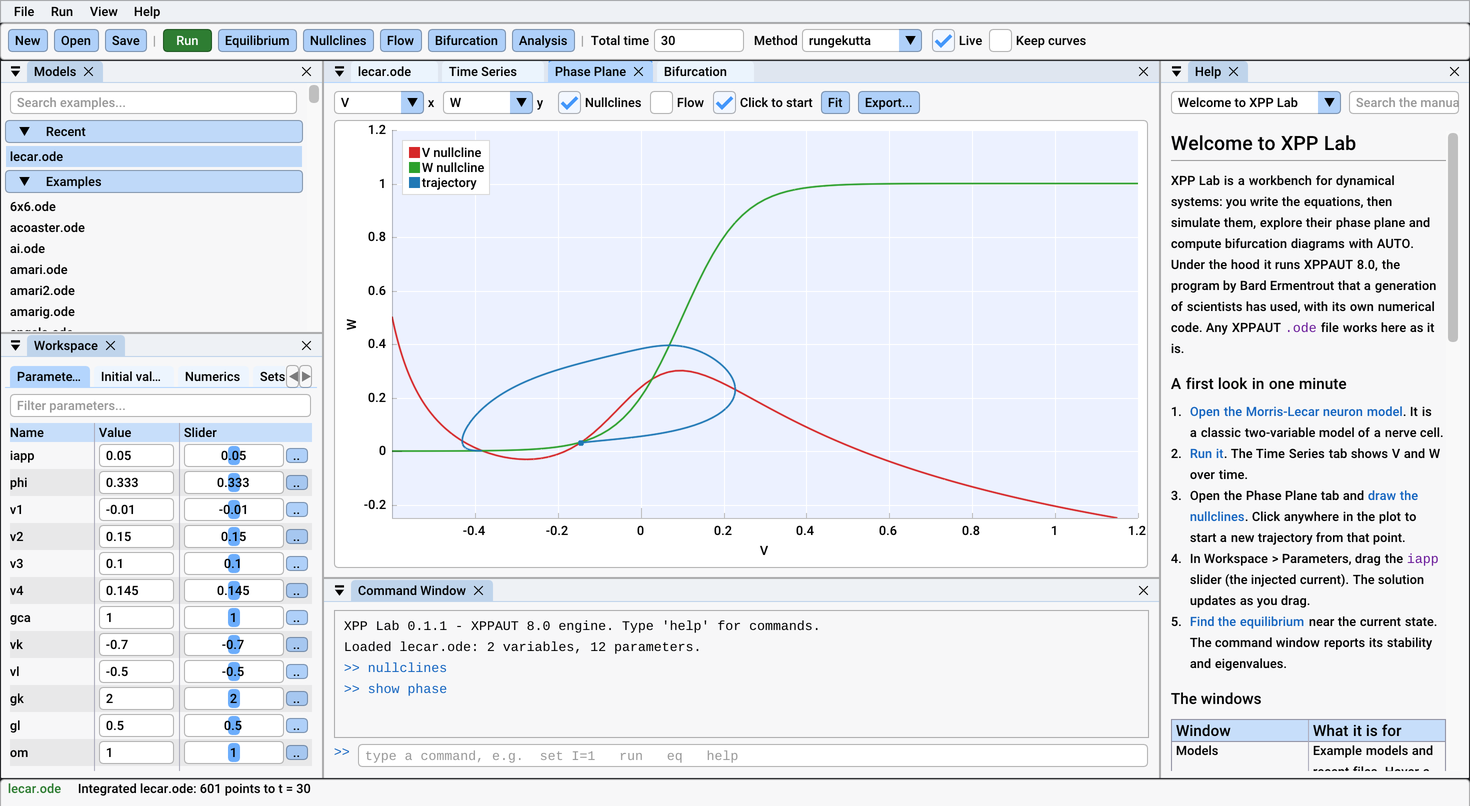
XPP Lab 0.1.1, from the release's .dmg, on the M2 MacBook Air (macOS
26.6), shown at half its 2940 × 1612 pixels.
What already works
- The engine needs no X server. XPPAUT's X11 calls go to a null implementation.
- The app uses SDL3, which draws with Metal and opens the native file panels (NSOpenPanel, NSSavePanel).
- CI's macOS job (Apple Silicon, macOS 26) builds everything and builds
unmodified XPPAUT 8.0 with X11 from Homebrew. It checks that all 197
example models give the same output with both. It runs the engine and
Python tests, starts the app for a screenshot, and builds the
.dmg. Apple Clang fuses multiply-adds by default; the build turns that off (-ffp-contract=off) so the numbers match. - The release workflow builds a universal app (arm64 and x86_64,
macOS 11 or later). SDL3 is compiled from source because Homebrew's is
single-architecture. It mounts the
.dmgand checks the architectures, that nothing links outside the bundle, the signature, and that the app starts and runs AUTO. That build is the.dmgof each release. Info.plistdeclares the.odedocument type (UTIorg.xpplab.ode), marks the app as Retina-capable and sets the minimum system version to 11.0.- ⌘ shortcuts: ImGui maps its Ctrl shortcuts to ⌘ on macOS (⌘O, ⌘S, ⌘N, ⌘Q), and SDL adds the standard application menu (About, Hide, Quit) and the Window menu.
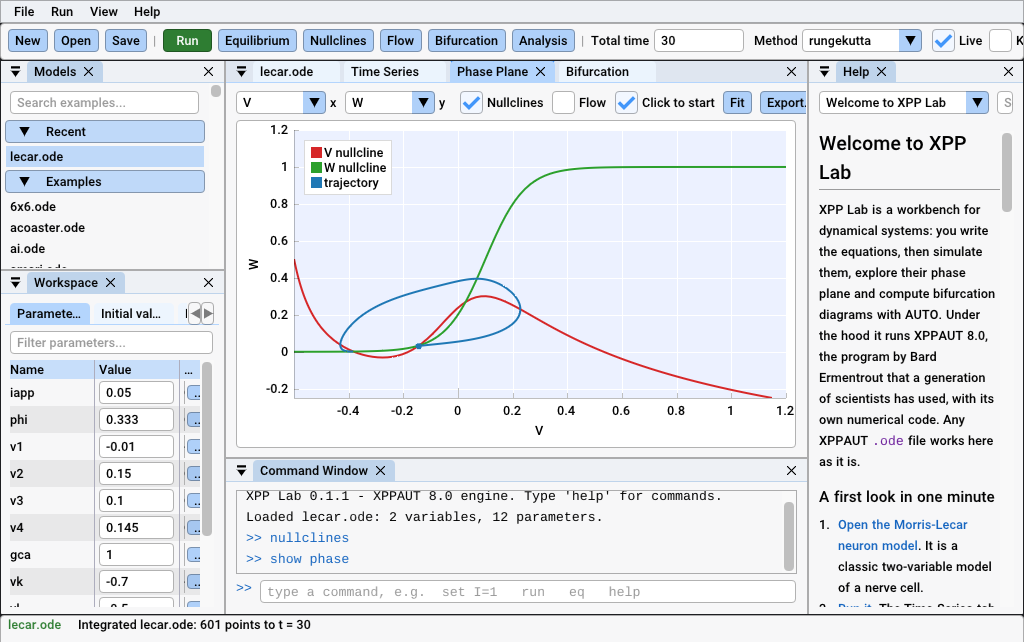
The CI screenshot from GitHub's Apple Silicon runner: a 1× screen, so it cannot show Retina problems.
The work, in order of impact for students
1. Draw correctly on Retina — done
The two fixes described above, confirmed on the MacBook Air. CI passed on the branch.
2. Open without a warning: Developer ID and notarization
This is the biggest obstacle in a classroom. On macOS 15 and later the way past the warning is hidden in System Settings, and a lab handout that says "ignore the security warning" is a poor start.
- Join the Apple Developer Program. Enrolment as an individual takes a day or two, and users then see the member's legal name as the developer. An organization account shows the organization's name but needs a D-U-N-S number. Apple's fee waiver for educational institutions and nonprofits is for organizations that distribute free apps through the App Store, not for individuals.
- Create a Developer ID Application certificate and export it as a
.p12file. Create an App Store Connect API key for notarization. - Store as repository secrets: the certificate (base64) and its password, and the API key, key ID and issuer ID.
- In the release workflow:
- import the certificate into a temporary keychain;
- sign from the inside out (
libxppe.dylib, SDL, then the app; not--deep) with--options runtime --timestampand an entitlements file; - sign the
.dmg, runxcrun notarytool submit --wait, thenxcrun stapler staple; - check the result with
spctl --assess -vv. - Entitlements:
com.apple.security.cs.disable-library-validation. XPPAUT'sexportstatement loads a library the user compiled (dlopeninextra.c). Under the hardened runtime, macOS refuses libraries that are not signed by the same team, and a student's own library never is. The app's private engine copies would pass: they are byte-for-byte copies of the signed library.
Fix the bundle at the same time: name it XPP Lab.app rather than
xpplab.app, and ship SDL once (it is in both Contents/MacOS and
Contents/Frameworks, 3 MB of a 10 MB download).
- Until then, TESTING.md's instructions stay.
3. Fit a 13-inch laptop
Most students will have a 13-inch MacBook Air: 1470 × 956 points (M2 and later) or 1440 × 900 (M1), minus the menu bar and the title bar. At the right scale the default layout fits, but only just. Even at 1024 points wide, the CI screenshot shows the toolbar cut off at the right.
- Toolbar: move what does not fit into a » menu instead of cutting it off.
- When the window is narrower than about 1300 points, start with the Help panel closed (F1 opens it) and give the plots its column.
- This helps Windows laptops at 150% too.
4. Things a Mac user notices in the first minutes
- Follow the system appearance while running. Today the app reads the
light or dark appearance only on the first launch.
app_save_settings()writesdark=on every quit, and after that the system setting is ignored. Many Macs switch automatically at sunset. Add View > Appearance: System, Light, Dark (default System) and handleSDL_EVENT_SYSTEM_THEME_CHANGED. - Ask before quitting with unsaved changes. Quit in the Mac menu
(⌘Q) reaches the app as
SDL_EVENT_QUITand the app quits at once, so an edited model is lost. SDL cancels the system's own termination and leaves the decision to the app, so the app can ask first. The same applies when the window is closed on Windows and Linux. - Never write into the app. Examples open from inside the bundle
(
Contents/Resources/examples), and Save writes back there: - in Applications that modifies a signed app, which macOS may then report as damaged;
- run from the
.dmgor from Downloads (App Translocation), the save fails.
Saving an edited example should ask where to put the copy, defaulting to a folder in Documents. - Standard shortcuts: ⌘W closes the focused panel, and ⌘, opens settings. SDL's application menu already shows a greyed-out Preferences… item that does nothing. Menus say "Cmd+O"; the Mac convention is "⌘O", but neither Roboto nor Cousine has the ⌘ glyph, so one must be merged into the font atlas from a symbol font.
5. Trackpad gestures in plots
ImPlot zooms on scroll. On a trackpad, the two-finger scroll is how Mac users move content, and it arrives as many small scroll events, so today a two-finger swipe zooms in jerks. Mac users expect:
- two-finger scroll to pan the plot;
- pinch to zoom around the pointer, using SDL 3.4's
SDL_EVENT_PINCH_BEGIN/UPDATE/END; - a mouse wheel to zoom, as now.
SDL does not say whether a scroll came from a trackpad or a wheel, so the honest design is a setting, Scroll pans plots (trackpad), on by default on macOS. The 3D view gets the same treatment: drag rotates, pinch zooms.
6. The Mac menu bar
Mac users look for menus at the top of the screen. Today XPP Lab's menus are inside the window, and the system menu bar has only SDL's application and Window menus.
- A small Objective-C file (
app/src/mac_menu.m, a few hundred lines) builds File, Edit, Run, View, Window and Help in the system menu bar. Each item sends a command-window command (run,eq,nullclines, ...) through a queue the frame loop empties, so the menus need no new logic. - Hide the in-window menu bar when the system one exists. That gives the plots about 25 points of height on a laptop.
- Standard items:
- About XPP Lab, with the version and engine credits;
- Settings… ⌘,: theme, text size and XPPAUT keys, now under View;
- Quit ⌘Q, which asks about unsaved changes;
- an Edit menu whose Cut, Copy, Paste and Select All reach ImGui's text fields. Menu key equivalents catch ⌘C and ⌘V before SDL sees them, so this needs care.
- File > Open Recent goes through
NSDocumentController, so recent models also appear in the Dock icon's menu, and the Help menu gets macOS's search field.
7. Remember the window and the session
Today the window opens maximized every time, and layout.ini keeps only
the panels.
- Save the window's position, size and full-screen state, and reopen the
last model, the way MATLAB does. Keep these in
settings.inion all platforms. Check that the saved position is still on a connected display. macOS's own state restoration (NSWindowRestoration) is not needed for this.
8. Finder: declared, not yet tried
Info.plist declares the .ode type, so double-clicking a model, Open
With and dropping it on the Dock icon should all work: SDL delivers them
as drop events. No person has tried it yet. Things to check:
- whether macOS registers the type after the first launch from Applications;
- that a double-click with the app closed opens that model. On a first
start the app opens
lecar.odeand then the dropped file, which loads the engine twice. That is harmless but slow; skip the example when a file arrives in the first frames. - that Quick Look shows
.odefiles as text: the type conforms topublic.plain-text.
9. Distribution: Homebrew and Python
- Homebrew cask.
brew install --cask xpplabis how many Mac users and lab administrators install apps. - Requirements: a public repository (the download URL must be reachable) and a notarized app. Homebrew stopped supporting casks that fail Gatekeeper on 1 September 2026.
- Start with a tap: a repository
homebrew-xpplabholdingCasks/xpplab.rbwith the version, URL and SHA-256. The release workflow updates it on a Linux runner. - Move to homebrew/cask once the project meets its notability rules.
- The Python wheel is a separate route.
pip install xpplabgives the engine, AUTO and the Python API for scripts and Jupyter, not the desktop app. The macOS wheel is universal2, built by cibuildwheel, which is already configured to run on tags and by hand. It needs no notarization: pip downloads are not quarantined, and the engine library carries the ad-hoc signature that Apple's linker adds, which Apple Silicon accepts. - Publish it to PyPI with the first public release, after a test on an Intel Mac.
- Later, conda-forge, for courses that use Anaconda.
- Not the Mac App Store. Its sandbox forbids loading user-compiled
libraries (
export). Developer ID and notarization give the same smooth install without that limit. - Updates, later: an opt-in check of GitHub's releases at start-up, or Sparkle.
Testing without a Mac at hand
What CI on macOS can do:
- build;
- run the goldens and the tests;
- start the app and take a screenshot at 1×.
What it cannot show:
- Retina;
- the trackpad;
- Finder;
- the menu bar;
- Gatekeeper.
The plan:
- Catch Retina-type bugs on Linux, cheaply. Weston's headless
compositor gives a window whose pixel density is 2, with sizes in points
as on a Retina Mac:
weston --backend=headless --width=1470 --height=956 --scale=2. A screenshot under it in the Linux app job would have caught both bugs. The check is the interface scale in the app's stderr line, and the screenshot's size against the window's. - Try a 2× screen on the macOS runner, once, by hand. List the
virtual display's modes (
displayplacer list) and switch to a HiDPI one. If one exists, the macOS job takes a second screenshot at 2×. - Make CI's screenshots easy to read. Save them as PNG and keep the app's scale line in the log.
- A person with a Mac.
tests/macos/TEST-PROMPT.mdin the repository is a prompt for Claude Code on the Mac. It checks the download and the first run, takes screenshots at full Retina resolution, builds from source, and reports on amacos-reportbranch without running CI. The checklist below is for testers who do it by hand.
Mac tester checklist
- The Mac: Apple menu > About This Mac gives the chip (M1 to M4, or Intel) and the macOS version. Is a second screen attached?
- Install: open the
.dmg, drag the app to Applications and open it from there. What does macOS say? Take a screenshot (⇧⌘4, then Space, then click the window). - The window: it fills the screen. Text is about the size of Finder's and looks sharp, and the toolbar is not cut off. Take a screenshot.
- Run from Terminal
(
/Applications/xpplab.app/Contents/MacOS/xpplab) and copy what it prints. The line startingXPP Lab: windowgives the scale. - ⌘O shows the standard Mac open panel; open an
.odemodel. - Double-click an
.odefile in Finder, then drop one on the Dock icon. - In the phase plane, scroll with two fingers and pinch; if you have a mouse, use its wheel. Say what happened.
- While the app runs, switch System Settings > Appearance between Light and Dark.
- Edit the model, press ⌘S, then ⌘Q.
- Open the app again: is the window where you left it?
- With a second screen, drag the window across. Text should keep its size and stay sharp.
- Report with the Feedback or Bug report issue template, with the screenshots and the Terminal output.
Summary
| Step | For students | Work |
|---|---|---|
| 1. Retina drawing and scale | the app is usable at all | done, confirmed on a Mac |
| 2. Developer ID, notarization | opens without a warning | about 1 day |
| 3. Fit a 13-inch screen | nothing cut off | 0.5–1 day |
| 4. Appearance, quit prompt, save copies, ⌘W ⌘, | no lost work, looks right | 1–2 days |
| 5. Trackpad | plots move as expected | 1–2 days |
| 6. Mac menu bar | menus where Mac users look | 2–3 days |
| 7. Window restoration | picks up where it left | 0.5 day |
| 8. Finder | double-click a model | 1 hour |
| 9. Homebrew, PyPI | one-line installs | 1 hour each |
| CI: Linux 2× screenshot | stops this bug class | 1–2 hours |
What is needed from people
- A Mac the developers can reach, to build and take screenshots there. A person is needed for anything on the screen itself: Gatekeeper, Finder, the trackpad.
- An Apple Developer account (step 2).
- One or two more Mac testers, ideally one with an Intel Mac. CI runs only on Apple Silicon, so no automated check covers Intel.